KrayinCRM AMI allows you to quickly deploy a CRM system on an AWS EC2 instance using the built-in KrayinCRM auto-installer script (setup.sh).
Just like our other AMIs such as the Magento AMI Installer, it comes pre-packaged with all the necessary components to simplify deployment, including Apache/Nginx, MySQL, PHP, and SSL.
Prerequisites For KrayinCRM AMI Installer
This AMI comes pre-configured with all required software and the KrayinCRM source code. Before using the installer, ensure the following:
- You must launch the EC2 instance using the KrayinCRM AMI.
- The auto-installer script is located at:
/home/ubuntu/setup.sh - The system pre-installs and configures Apache/Nginx, PHP (8.3), MySQL, and all required PHP extensions.
- The KrayinCRM source code is available under:-
/var/www/laravel-crm/ - DNS Requirement: Your domain should point to the EC2 instance’s public IP using an A record.
Installation Steps
Step 1: Run the Script
Login and run KrayinCRM AMI Installer script
|
1 |
sudo bash setup.sh |
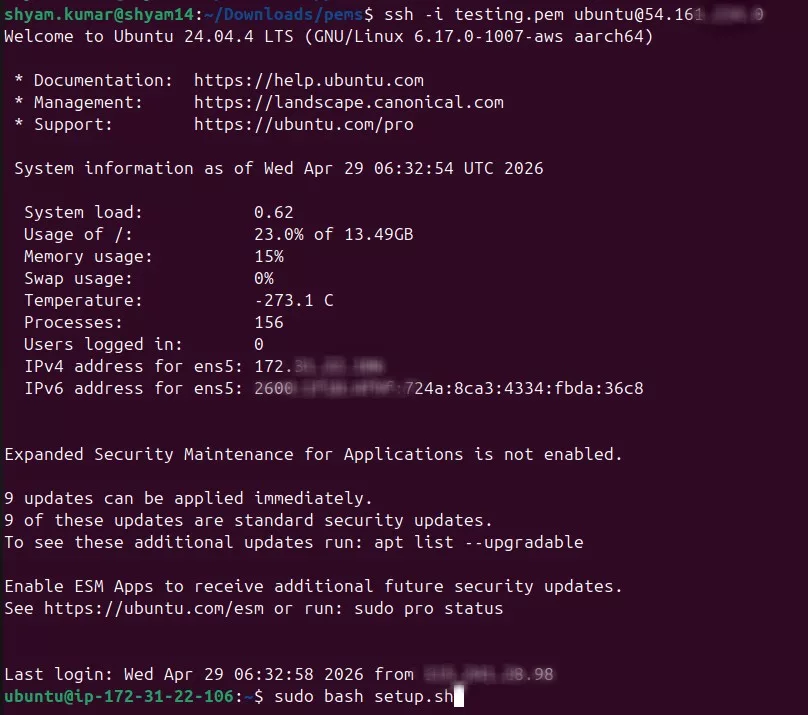
The system will prompt you to enter the following inputs:
- MySQL Credentials
- Database user (e.g. krayin_user)
- Database password
- Database name (e.g. krayin_db)
- Database user (e.g. krayin_user)
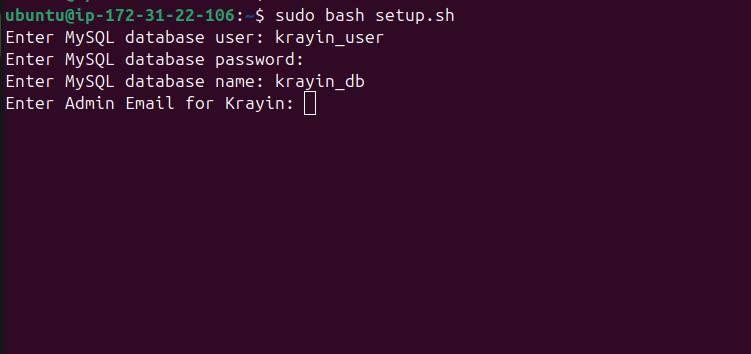
The script will automatically create the MySQL database and user if they do not already exist.
Domain Validation
- Enter your Email
- Enter your domain (e.g. example.com)
Make sure the domain is pointing to the current server.
Step 2: KrayinCRM Installation
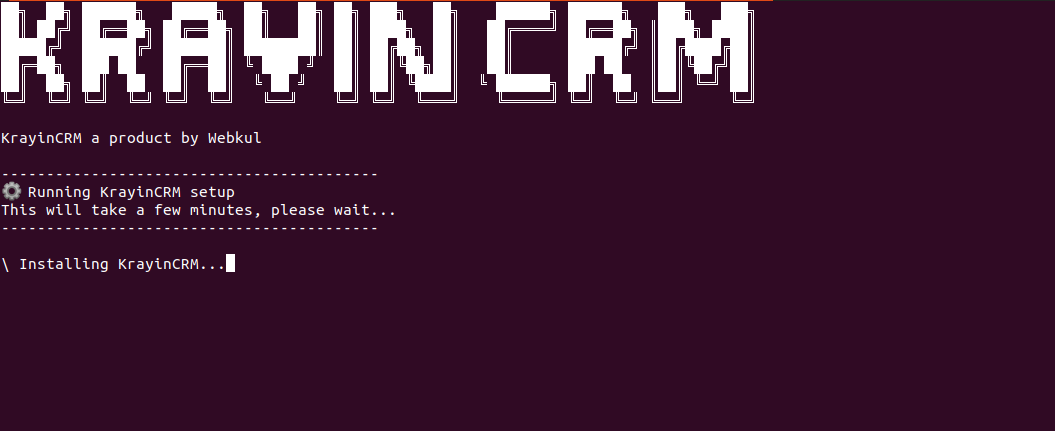
Once domain validation is successful, the KrayinCRM AMI Installer proceeds with the automated installation of KrayinCRM.
- The KrayinCRM setup script runs silently in the background.
- A spinner on the terminal will indicate ongoing progress.
- The installation typically completes within a few minutes.
This automated process ensures a smooth and hands-free setup of your CRM system using the KrayinCRM AMI.
For comparison, you can also check out our Magento AMI auto-installation workflow, which follows a similar approach to streamline deployment.
Step 3: Apache/Nginx Virtual Host & SSL Path
As part of the KrayinCRM AMI installation, Apache VirtualHost configuration files will be automatically created for both HTTP (port 80) and HTTPS (port 443).
- Apache will be reloaded to apply the new configurations.
- An SSL certificate will be issued and installed automatically using Let’s Encrypt (Certbot).
- Once completed, your KrayinCRM instance will be securely accessible over HTTPS.
Step 4: Credentials File Location
At the end of the KrayinCRM AMI installation, all admin credentials will be saved securely to:
/home/ubuntu/krayincrm_admin_credentials_<your-domain>.txt
This file will include:
- KrayinCRM Admin Username
- KrayinCRM Admin Password
- KrayinCRM Admin Panel URL
Be sure to download or store this file safely, as it contains sensitive login information required to access your CRM.
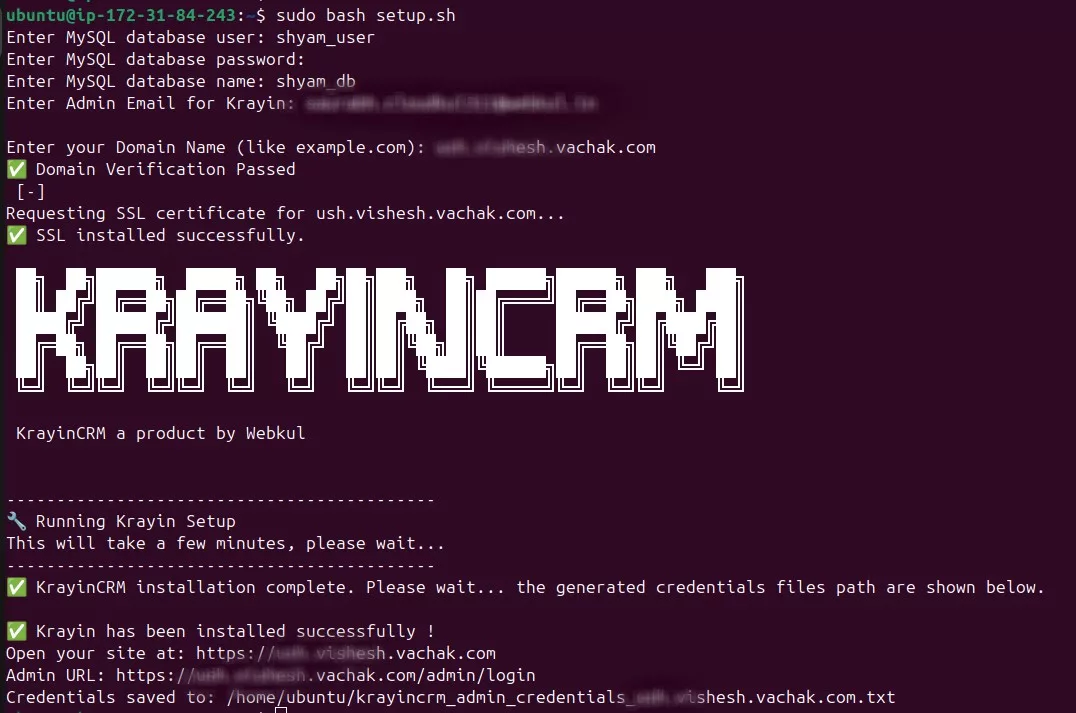
Example Output
You have successfully installed KrayinCRM.
Next, you can access your CRM at: https://crm.example.com/
Admin Login: https://crm.example.com/admin/login
Credentials saved to: /home/ubuntu/krayincrm_admin_credentials_crm.example.com.txt


Be the first to comment.