This Magento AMI walks you through using the Magento auto-installer script (setup.sh/setup-magento.sh) to deploy a Magento site with Nginx, Varnish, MySQL, PHP and SSL on an AWS EC2 instance.
Prerequisites For Magento AMI Installer
This AMI comes pre-configured with all required software and Magento source code. Before using the installer, ensure the following:
- You launch the EC2 instance using the Magento AMI.
- The auto-installer script is available at: /home/ubuntu/setup.sh
- The system pre-installs and configures Nginx, MySQL, OpenSearch, Varnish, OpenJDK 17, PHP and the required PHP extensions.
- The system has already placed the Magento source code under: /var/www/html/magento2/
- DNS: Your domain must point to the EC2 public IP (A record set)
- Magento Keys: Create account on https://commercemarketplace.adobe.com/ and login to the account then top right corner on your account, expand and click ‘My Profile’, then ‘Access Keys’, then ‘Create A New Access Key’. Now paste these keys where ever required in setup.
Installation:
Run the Script
|
1 2 3 |
sudo bash setup.sh OR sudo bash setup-magento.sh |
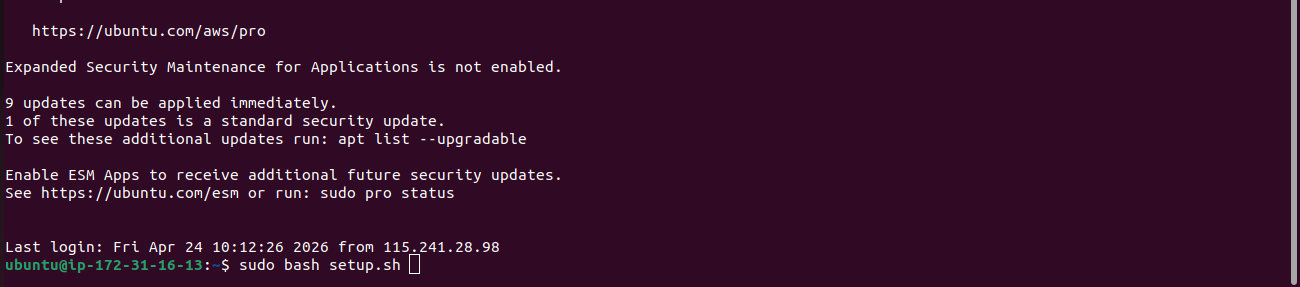
The system will prompt you to enter the following inputs:
- Database name (e.g. magento_db)
- Database user (e.g. magento_user)
- Database password
- Domain name
- Email address
- Admin pass
- Enter Magento Marketplace Public Key: (If asked, find the procedure to create in Prerequisites)
- Enter Magento Marketplace Private Key: (If asked, find the procedure to create in Prerequisites)

Additionally, the script will create the DB and user automatically if they don’t exist.
The script will check if the domain points to this server’s public IP.
If domain matches, installation proceeds.
If the domain doesn’t match, the system will ask you to try again.
Magento Installation
Once the domain check passes:
- Magento setup will run silently in the background.
- A spinner will indicate progress.
- It typically takes few minutes.
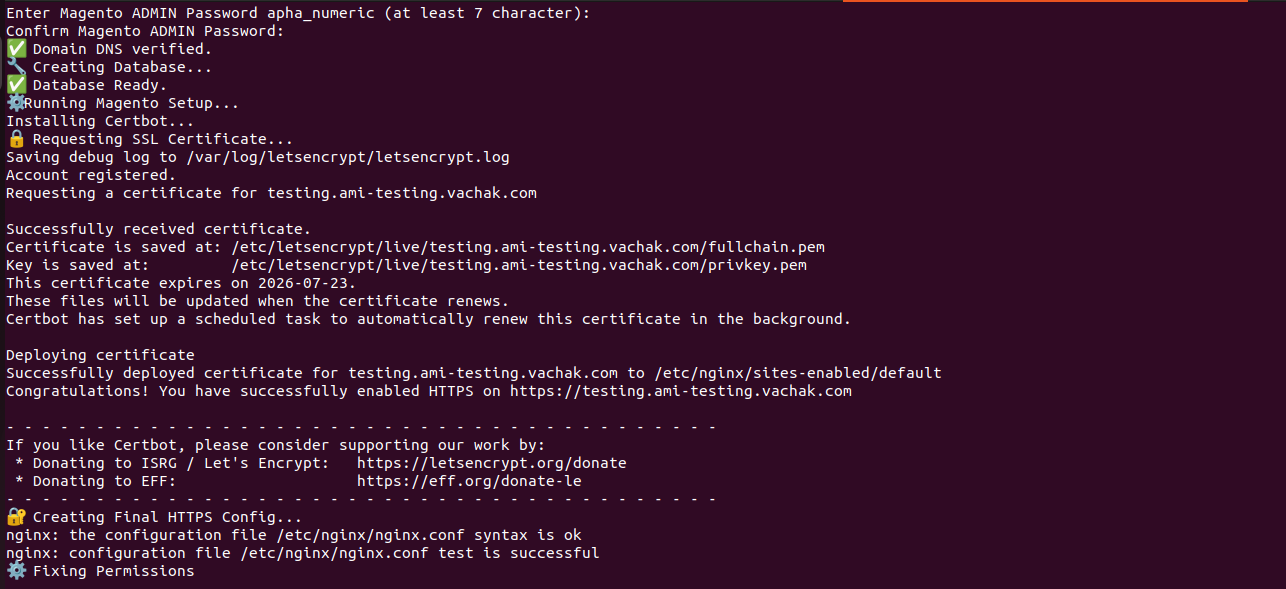
After completing Magento Setup it will install certbot and automatically configure Nginx.
- Let’s Encrypt SSL will be automatically issued using Certbot.
- Nginx vhost will be automatically configured for port 443 & 8080.
- After that it will fix permissions for magento.
- Then your site will be accessible over HTTPS.
Credentials
At the end, the following will be saved at the mentioned directory
—–> /home/ubuntu/magento_details.txt
OR
——> /home/ubuntu/magento_credentials.txt
Contents include:
- Store URL (e.g. https://example.com)
- Admin URL (e.g. https://yourdomain.com/admin_xxxxxx)
- Admin Username
- Admin Password

Example Output
Magento 2.4.8-p4 + SSL Installed Successfully!
Store URL: https://example.com
Admin URL: https://example.com/admin_xxxxxx
—–> The 2-Factor-Authentication for admin is already disabled.
Admin User: admin
Admin Password: PASSWORD


Be the first to comment.