Easily set up UVdesk — the open-source helpdesk system designed to reduce the workload of support representatives and streamline the entire support process — using our pre-configured AMI on AWS EC2.
This Uvdesk AMI walks you through using the Uvdesk auto-installer script ( setup.sh & domain.sh ) to deploy a Uvdesk site with Apache, MySQL, and SSL on an AWS EC2 instance.
Prerequisites For UVdesk AMI Installer
This AMI comes pre-configured with all the required software and the UVdesk source code.
To get started smoothly, make sure the following prerequisites are met.
- You launch the EC2 instance using the Uvdesk AMI.
- Launch an EC2 instance using the UVdesk AMI (t3.medium or higher is required).
- The setup script is available at: /root/setup.sh.
- The system has already placed the Uvdesk source code under: /var/www/html/
- Allows ports 80 & 443 open to all in AWS Security group.
- Allows port 22 open only to your system IP in the AWS Security group.
- Change the permission of the pem file: chmod 400 <pem file>.
- DNS: Your domain must point to the EC2 public IP (A record set)
Installation Steps
First, SSH into the server.
|
1 |
ssh -i pem-file ubuntu@server-ip |
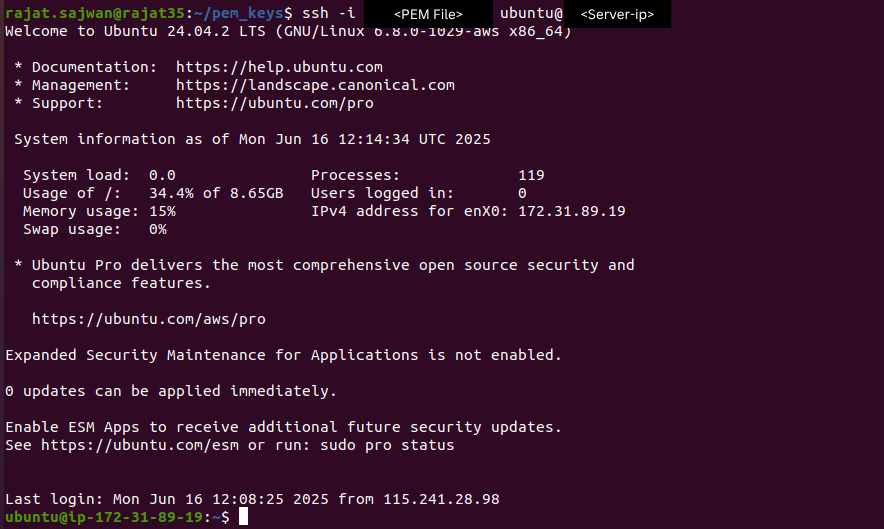
Run the script to configure Uvdesk. You’ll be prompted to enter the database name, username, password, domain and email to complete the setup.
|
1 |
sudo bash /home/ubuntu/setup-uvdesk.sh |
Point your domain to the EC2 instance’s Elastic IP and configure the A record correctly before running the script.
If you’re using Cloudflare or another DNS provider with proxying, disable the proxy before running the script. This ensures Let’s Encrypt can verify your domain. Re-enable the proxy after the SSL installation completes successfully.
Visit the domain in your browser to proceed with the UVdesk configuration.
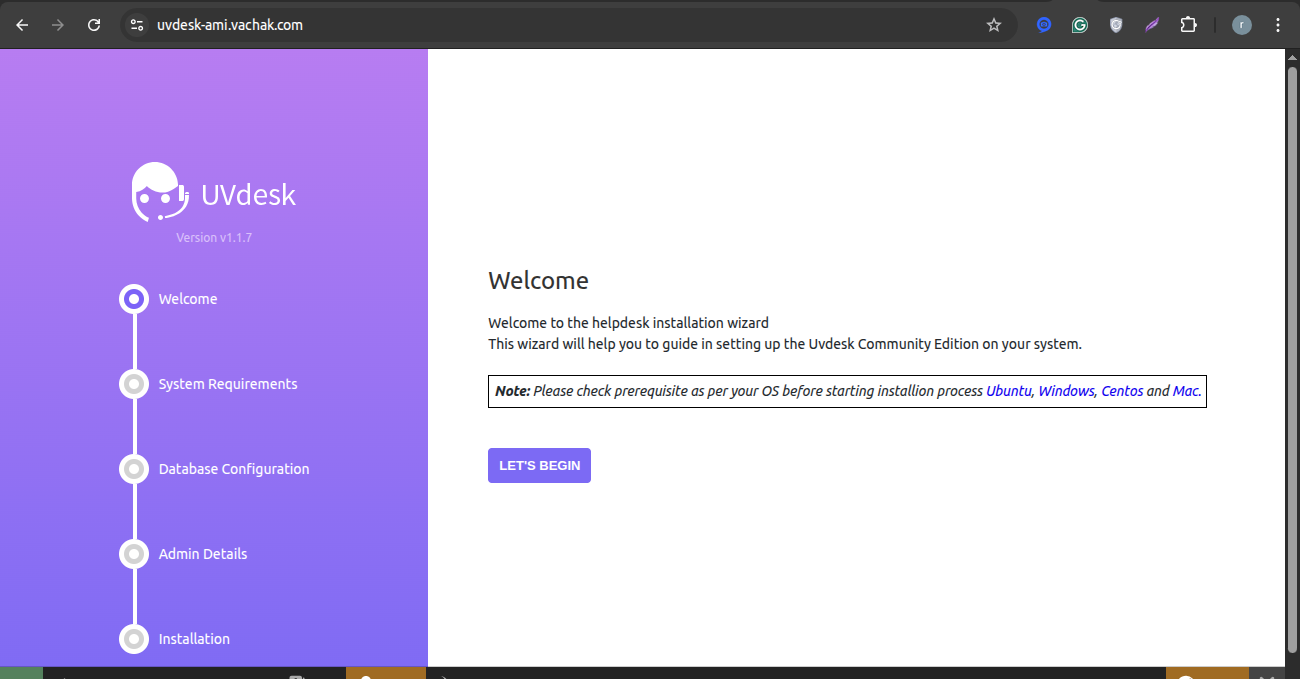
For guidance on configuring UVdesk, please refer to the Blog.
Need Support?
Thank you for reading this Blog!
To stay updated, keep in touch with us for our latest blogs. If you need any kind of support, simply raise a ticket at https://webkul.uvdesk.com/en/.
If you need assistance, alternatively, you can raise a ticket or contact us directly.


Be the first to comment.